
I kept losing the tools I found while scrolling, so I built an app that remembers them for
I kept losing the tools I found while scrolling, so I built an app that remembers them for me
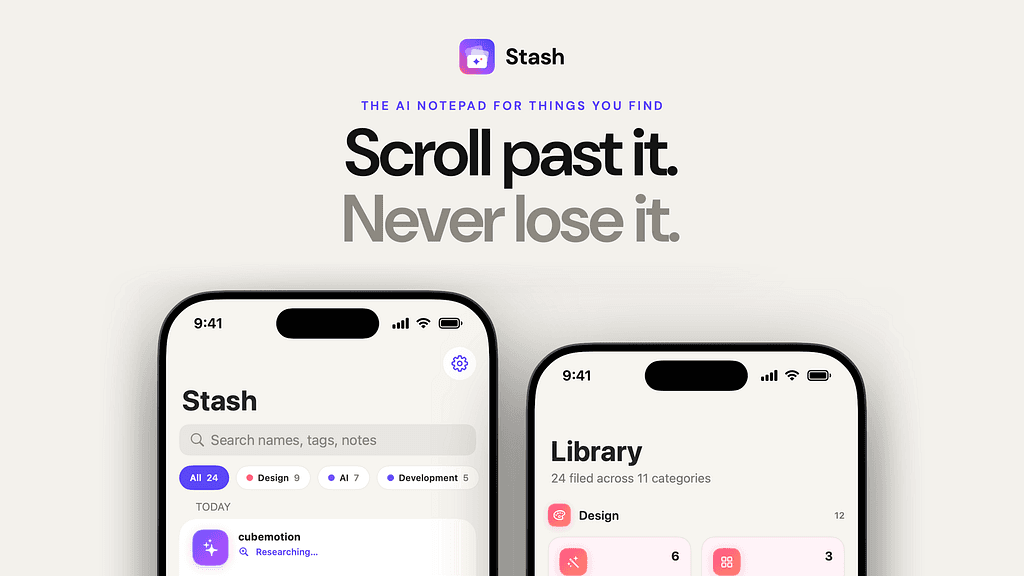
I kept losing the tools I found while scrolling, so I built an app that remembers them for me
Stash is a notepad where I type just a name, and it works out the rest.
I was scrolling through reels and came across a motion design library. Smooth little animations, exactly the kind of thing I’d want in a project someday. I thought, nice, I’ll remember that.
I didn’t.
This happens to me all the time. Most of what shows up on my feed is people showing off tools: a new AI app, a component library, a font, a plugin that saves an hour of work. I see a lot of them every day and I save almost none of them properly. Then, when I finally need one, I know I saw the perfect thing for it, and I end up digging through saved posts trying to find a video I half remember. Usually I give up.
I did try to fix this. Instagram’s saved folder puts everything in one pile, and you can’t search it by what the thing actually is. Bookmarks need a link, and a reel doesn’t give you one. My notes app came closest, but in the moment I’d only ever type the name. I never stopped to write what it was or why I cared. So my notes turned into a list of words like “cubemotion” that meant nothing to me two weeks later.
That was the real clue. The only thing I’m willing to do in the moment is type a name. Anything more and I just won’t do it. So whatever I built had to work with only that.
What Stash does
You type the name of the thing. That’s all. Lowercase, misspelled, run together, whatever you caught from the video.
Stash saves it straight away, so you can get back to scrolling. In the background it works out what you meant, writes a one-line summary and a couple of sentences on what it’s for, and puts it on the right shelf. “rive” becomes Rive, a tool for interactive vector animations, filed under Design › UI Motion & Animation.
Later, when you need something, you search “animation” or open the Design shelf, and it’s there with a description that reminds you why you saved it.
I typed “dribble”. Stash worked out I meant Dribbble, described it and filed it.
The part I cared about most
The easy version of this app would guess every time and file everything with confidence. I didn’t want that. A wrong answer that’s filed neatly is worse than no answer, because you’ll trust it.
So when Stash isn’t sure, it doesn’t pretend. If it can’t identify a name, if the name could mean more than one thing, or if none of my categories fit, it puts the item in a Review list and says why. Type “motion” and it asks whether you meant the animation library at motion.dev or Apple’s Motion app. Pick one and it tries again. If it can’t find anything at all, you can fill it in yourself.
A few decisions behind it
It only files things into categories that already exist. The AI picks from my list instead of inventing a slightly different shelf every time. If nothing fits, it suggests a new category and I decide whether to add it.
It only searches the web when it needs to. Well-known tools get answered from what the model already knows, which costs a fraction of a cent. A web search costs more, so it only runs one when it isn’t confident. For something I use every day, that adds up.
Nothing gets lost. If I’m offline or something fails, the item is still saved and gets looked at later.
The shelves are mine. It starts with sections for design, development, AI, productivity and learning, and I can rename them or add my own.
It’s a native iPhone app built with SwiftUI. I also added a Siri shortcut, so “add to Stash” works without opening the app.
What changed
Saving something now takes a couple of seconds, so I actually do it. And when I need a tool weeks later, I find it by what it is, not by trying to remember what the video looked like.
My library is slowly turning into a map of every tool I’ve come across, sorted in a way I’d never have had the patience to do myself.
Update: now you can just share it
When I first wrote this, the first thing on my wish list was a share button. It’s here now.
Typing a name worked, but it was still one step too many. When I’m halfway through a reel, I don’t want to leave the app and type anything. So now I don’t.
From pretty much anywhere, you tap Share and pick Stash:
a reel on Instagram or TikTok
a link from Medium, GitHub, YouTube or any other website
a screenshot, when the tool’s name is right there on screen
That’s the whole job on my side. Stash saves it straight away and I go back to scrolling. When I open the app, it reads what I shared, works out which tool it’s about, writes a short description and files it on the right shelf.
How it figures it out
It tries the simple things first. If you share a screenshot, the phone reads the text on it by itself. If you share a link, Stash reads the post’s preview, the same kind you see when you paste a link into a chat. Only then does the AI look at that text to find the one tool the post is about. If there’s still no clear answer and you shared a screenshot, the AI looks at the image itself.
When it can’t tell
Sometimes a post just doesn’t say enough, like a reel where the name is only spoken out loud and never written down. In that case Stash doesn’t guess. It keeps the link and puts the item in Review, so all I have to do is open the post and type the name. That’s still a lot better than losing the tool in the ocean of reels.